
Remote authentication
Notarial act via video call
If one or several parties are unable to come to the notary’s office, the notarial act may also be carried out via video call.

About the notarial act
In the case of remote authentication, the notary and the parties to the transaction meet via the E-notary self-service portal. During the notarial act, participants can communicate with the notary in real time, ask questions, review documents together and sign them in a secure online environment. A transaction carried out by means of remote authentication is legally equivalent to a transaction carried out at a notary’s office.
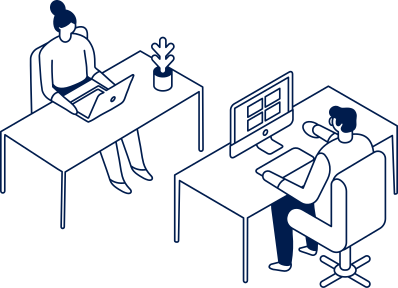
In the case of remote authentication, participants may be at home, in the office or even abroad. Hybrid authentication is also possible, whereby some people take part via video call while others are present at the notary’s office. Remote authentication is an option, not an obligation, and a notary assesses its suitability on a case-by-case basis for each transaction.
Transactions carried out by means of remote authentication
Most notarial acts can be done via remote authentication by agreement with the notary:
- property transactions;
- notarial acts concerning the establishment or amendment of a mortgage;
- transactions involving the sale and pledging of shares in a private limited company;
- notarial acts concerning the establishment and registration of a company;
- powers of attorney;
- notarial acts concerning succession;
- wills and succession contracts;
- marital property contracts;
- applications and consents;
- notarised signatures;
- other notarial acts.
Please note that it is not possible to contract a marriage or confirm a divorce by means of remote authentication.
If you would like to use the remote authentication option, please inform the notary’s office during the preparation of the act that you wish to participate via video call. The notary will decide whether remote authentication is possible in this case, and the office will send you the necessary instructions.
If it is not possible to verify a participant’s identity, actual intent or understanding of the transaction with sufficient certainty via video call, the notary will suggest meeting at the notary’s office.
What is required for remote authentication?
Remote authentication is open to anyone who can verify their identity digitally, sign documents electronically and take part in a video call in a quiet and private setting. No in-depth technical knowledge is required, but you should make sure that the necessary equipment is in working order before you start.
Before making an appointment with a notary’s office, make sure that:
- you have a functioning ID card or other digital means of identification and the PIN codes;
- you have a desktop or laptop computer with a camera and microphone;
- your internet connection is stable enough;
- you can be in a quiet and sufficiently private room while the notarial act is taking place;
- you can set aside enough time for the notarial act and focus on it without distractions.
If any of these conditions are not met, or if there are difficulties with digital signing, this does not mean that the notarial act will not go ahead. Discuss your concerns with the notary’s office and agree on whether hybrid authentication can be used or whether it would be better to meet at the notary’s office.
Before the act is conducted, it is worth carrying out a remote authentication test on the E-notary self-service portal. This helps to check whether the signing tool, camera, microphone and internet connection are working.
Preparing for remote authentication
Please take the time to read the draft document you have received from the notary before your appointment. If anything remains unclear or if you would like to amend any of the terms, please let the notary know as soon as possible. This leaves more time for discussing substantive matters during the video call.
Before the start of the notarial act:
- find a quiet place where you can concentrate without being disturbed;
- make sure you have enough of time and keep in mind that there may sometimes be a slight delay before the process begins;
- if possible, be in the room by yourself; if another person is present in the room, the notary and the other participants must be made aware of this;
- check that your internet connection, computer, camera and microphone are working;
- make sure you have the necessary PIN codes and a signing tool.
Participating in remote authentication
Once an appointment for remote authentication has been made with the notary, a notification regarding the upcoming remote authentication will be displayed in the ‘My transactions’ section of the E-notary self-service portal 24 hours before the authentication begins.
Approximately 15 minutes before the agreed start time, a button labelled ‘I confirm that I am ready for remote authentication’ will appear on the portal. Click on it and wait until the notary admits you to the video call.
If the notary has specified that identity verification is required for the act, the system will guide you through the process step by step. During the identity verification process, please take the necessary photos and follow the instructions displayed on the screen.
Just like an appointment at a notary’s office, remote authentication may begin a little later than the agreed time. You should therefore make sure you have enough time.
What can you expect during remote authentication?
At the agreed time, please wait in the self-service portal until the notary grants you access to the remote authentication. During remote authentication, participants can communicate with the notary, ask questions and review the documents together.
During remote authentication, please keep in mind that:
- the screen view changes while a document is being reviewed. The document is displayed on the screen instead of the notary’s video feed, so that all participants can familiarise themselves with its contents;
- the document is signed in the online environment. After the document has been reviewed, the notary sends it to the parties for signing. The document can only be signed in the remote authentication environment by clicking the ‘Sign’ button and adding the signature;
- once the document has been signed, the notary concludes the notarial act. The notary will also add their signature after all participants have signed the documents. After that, the documents will become available on the self-service portal.
Identification of persons
If the notary has specified that identity verification is required, the system will guide you through the process step by step. You must take the necessary photos and follow the instructions displayed on the screen.
You should set aside a couple of extra minutes for the verification of your identity.

Remote authentication guideline for transaction participants
For remote authentication to be successful, it is important that participants are prepared and know what to expect during the process.
Please see the Remote Authentication Guideline for clients.
The guideline helps you prepare for a video meeting and explains how to check your technical readiness, what to keep in mind when choosing where to join the meeting, and how the document can be signed.

Recording of remote authentication
The notary may record the remote authentication process. The purpose of recording is to ensure the verification of identity, the reliability of the process and the ability to verify the data at a later date.
Further information on the recording of remote authentication and the processing of personal data
The notary may record the remote authentication process and retain the recording. The Chamber of Notaries is the controller in the processing of personal data associated with recording. The purpose of recording is to verify identity, ensure the reliability of the process and make it possible to verify the data at a later date (legal basis: § 10 of the Notarisation Act, § 31 and § 47 (6) of the Money Laundering and Terrorist Financing Prevention Act).
The personal data in the recording is retained for 10 years in the E-notary information system, which is managed by the Centre for Registers and Information Systems.
The notary informs the parties to the transaction that the remote authentication process is being recorded before the recording begins.
Frequently asked questions
Can I have a look at the detailed instructions before the remote authentication?
Yes. The Remote Authentication Guideline for clients contains step-by-step instructions and screenshots to help you familiarise yourself with the remote authentication environment and how to use it.
What is the remote authentication test?
On the E-notary self-service portal, you can carry out a remote authentication test, which helps you check whether your computer and internet connection are ready for remote authentication before it starts.
In order to do the test, log in to the E-notary self-service portal and select ‘Remote authentication test’ on the home page.
The test helps you check:
- the signing option (ID-card, Mobile-ID or Smart-ID);
- the functioning of the camera and microphone;
- the speed and stability of your internet connection;
- any technical limitations.
If you are participating in remote authentication with a family member using the same internet connection, we recommend that you do the test on different computers at the same time to check whether the internet connection is fast enough.
Which web browser should I use to log in to the E-notary self-service portal?
We recommend using Google Chrome or Microsoft Edge with the ID card feature installed and enabled for remote authentication.
Internet Explorer, Firefox and Safari are not supported.
What kind of device can be used to participate in remote authentication?
You need a desktop or laptop computer with a camera, a microphone and speakers to participate in remote authentication. You cannot participate with a mobile phone.
If you are taking part in remote authentication from another country, the E-notary self-service portal automatically takes time zone differences into account. Make sure that your computer’s time zone is set correctly.
What kind of internet connection is recommended?
To ensure a smooth experience, we recommend using a stable internet connection. Where possible, use a cable connection.
The recommended internet speed is:
- download speed at least 30 Mbit/s;
- upload speed at least 15 Mbit/s.
If you are using a firewall or a restricted network, the necessary connections may be blocked. The remote authentication video server irbis.rik.ee (213.184.54.164) must be accessible on TCP and UDP ports 1024–65535 in both directions.
What should I do if the video call isn’t working?
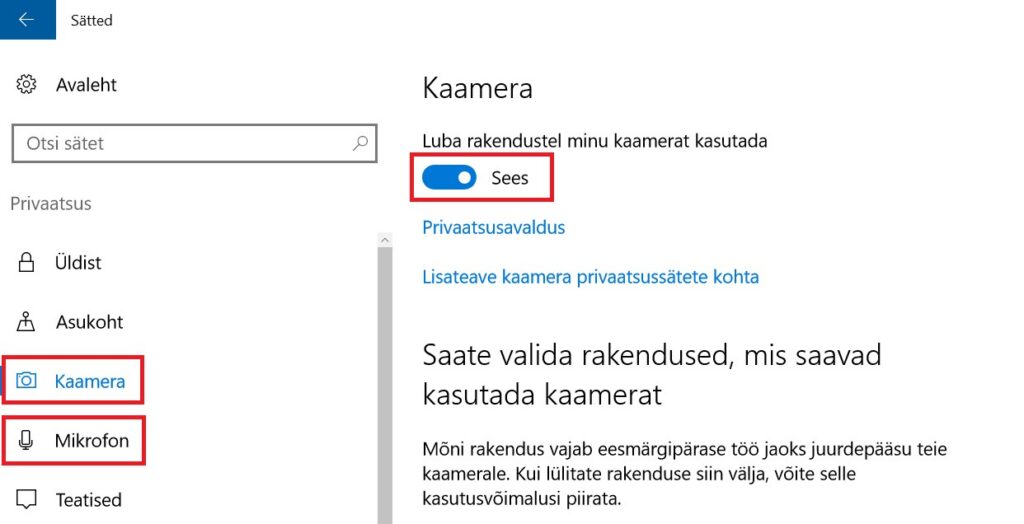
If the video feed is black or you are unable to establish a video connection, please try refreshing your web browser first (press F5).
If there is no sound or your video feed is not visible:
- check the permissions for using the camera and microphone in your web browser settings;
- check your computer’s privacy settings;
- make sure that the necessary permissions have been granted to the applications.
How do I sign a document?
In order to sign a document, you must use the ‘Sign’ button on the E-notary self-service portal during the remote authentication process.
A document can be signed with:
- an ID card;
- digital ID;
- Mobile-ID;
- Smart-ID;
- a residence permit card;
- the digital ID of an e-resident.
If you use an ID card, the ID card plug-in must be installed in your web browser.
You can find more detailed information on the RIA website:
Find out more
Contact and help
If you have agreed on a transaction or need advice, please contact a notary.